









Same result, every run
For invoices, refunds and payouts, a 1% error rate is too much. Whenever makes the same decision every time.

AI is brilliant at building. Wasteful at repeating.
Describe it in plain words. Whenever writes real code you own and runs it across any of your tools. No coding needed, and no ceiling when you want one.
Free AI building has weekly usage limits. You pay per run.
Used by teams behind
Describe it in plain words. It asks only what it needs to know.
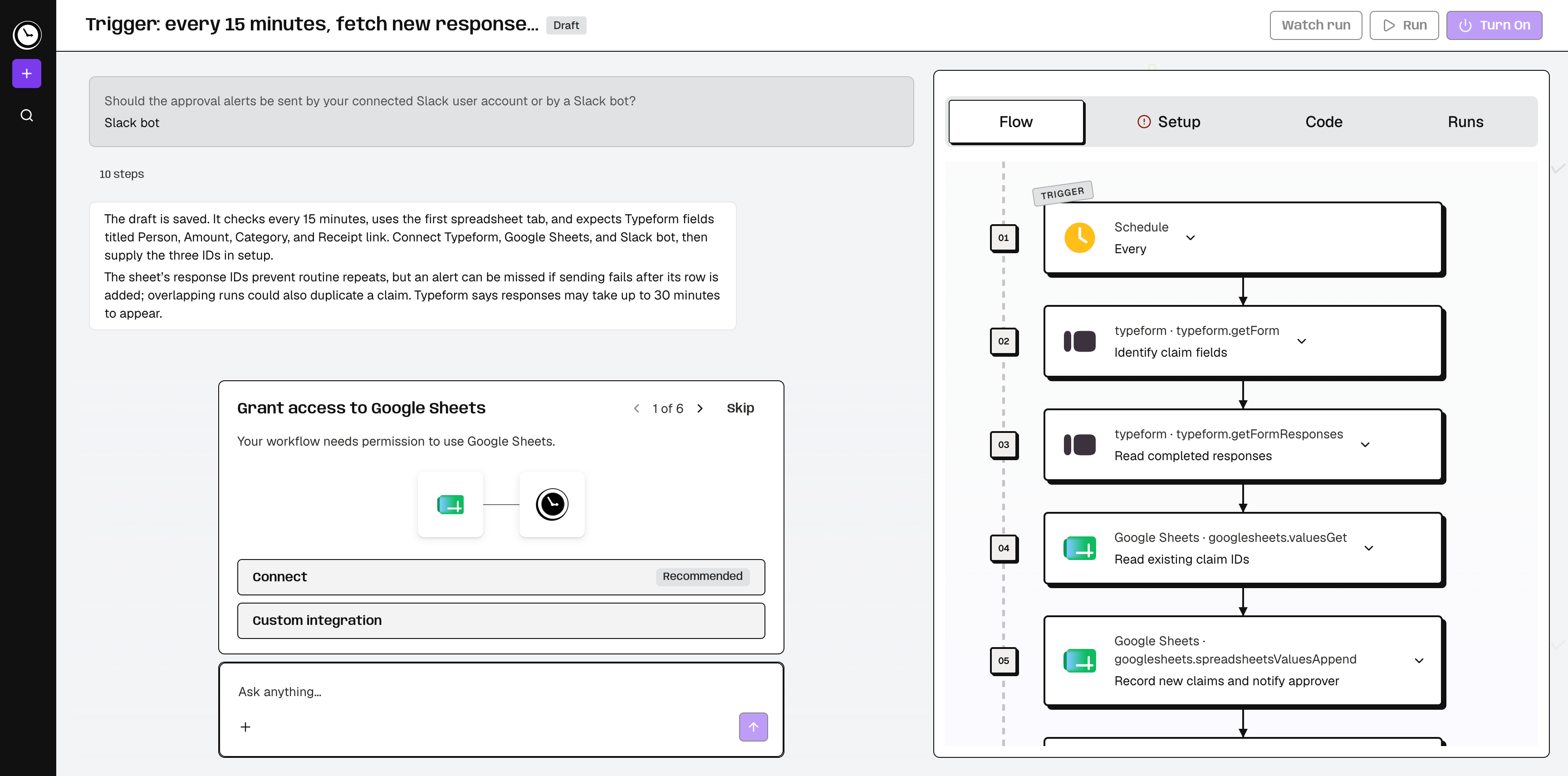
Every step, easy to follow. Connect apps in one click.
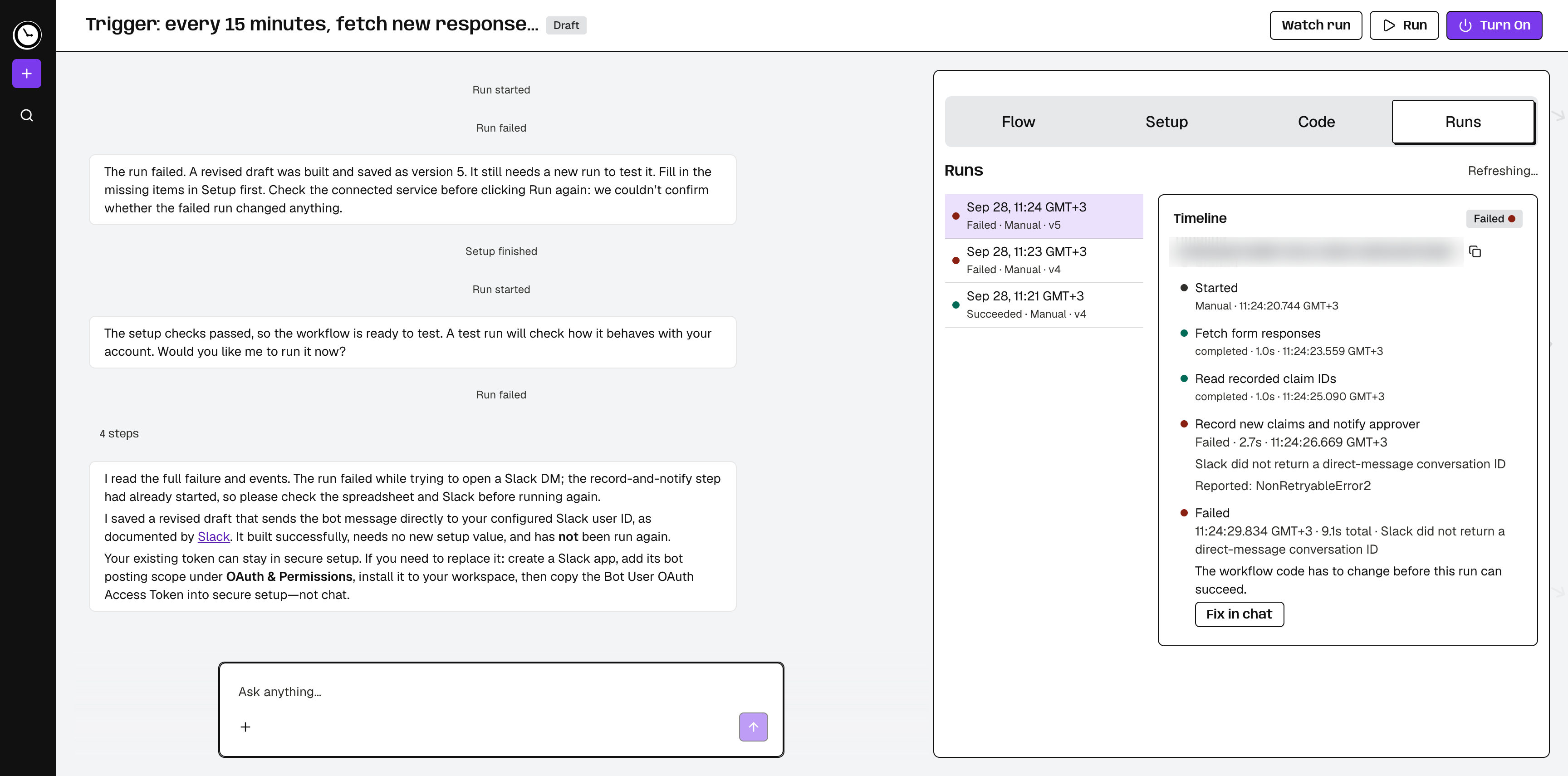
Something broke? AI reads the failure and fixes it with you.
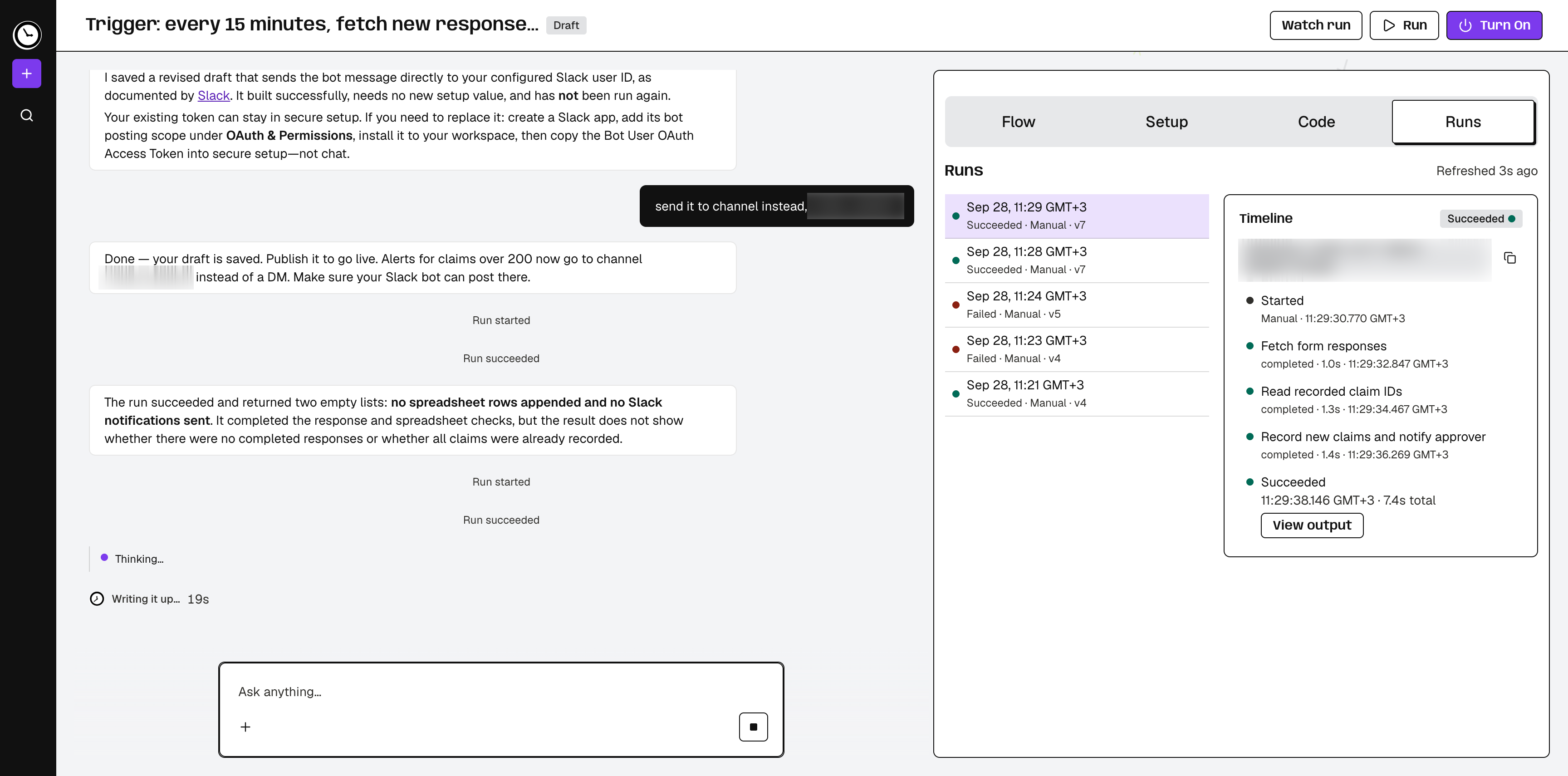
Same result, every run.
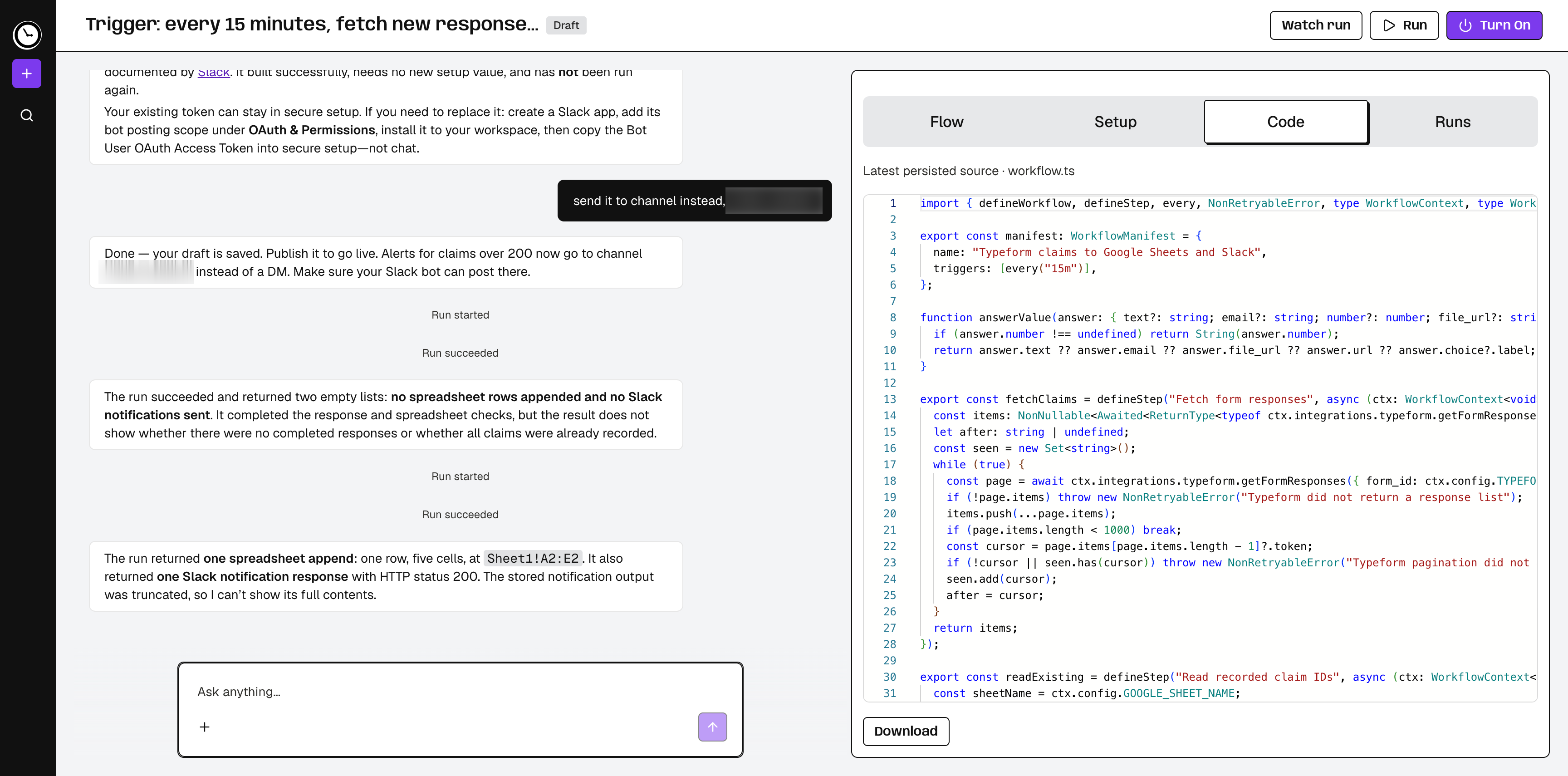
Nothing hidden, nothing locked in: readable code a developer can take over.


 Build this workflowAnnounce closed-won deals in SlackCelebrates each won deal in Slack with the numbers and a short recap of how it was won.
 Build this workflowPublish Instagram posts from a calendarPublishes due rows from your Instagram calendar on the cadence you choose and writes each post link back.
 Build this workflowLog survey responses and alert on low scoresAdds each survey response to Google Sheets within minutes and emails the owner when the score falls below your threshold.
 Build this workflowTrack keyword rankings in a sheet each weekChecks the search position of every keyword on your list, appends the history to a sheet and reports the moves.
 Build this workflowRoute large expense claims to a managerLogs every expense submission in a sheet and alerts a manager in Slack when the amount is over the approval limit.Build this workflow
Start the next one from a template, then change anything by asking.
Build freeAn agent stops to reason through every invoice, so work piles up behind it, and now and then it gets one wrong. Whenever runs your workflow as code. The only AI step is the one you add, like writing the vendor email.
For invoices, refunds and payouts, a 1% error rate is too much. Whenever makes the same decision every time.
Whenever runs your workflow in milliseconds. Nothing waits for a model to think it through again.
Whenever uses AI once, to write your workflow. After that, every run is almost free.
Need a reply written, a PDF read or a judgment call? Add an AI step in Whenever, only where you want it.
1,402 integrations in the catalogue. Not in the list? Name the service and Whenever reads its API documentation, tells you which pages it used, and writes the integration. Nothing published? Paste the docs you do have.
1,402 integrations in the catalogue. Not listed? Name it, and Whenever reads the docs and writes the integration.
The CRM your dental clinic runs on
Not in the cataloguedocs.dentadesk.ioA warehouse system from 2011
Not in the cataloguepasted PDF manualYour team’s own admin API
Not in the catalogueopenapi.jsonThe booking app at your local gym
Not in the catalogueapi.fitslot.app/docsFor the workflows your canvas can’t hold
Node builders hide complex logic in Code nodes that nobody can read. Whenever writes the whole workflow as code, so every step reads in plain words.

Every hour

Get new orders

Skip test orders and staff accounts
 LoopEach order
Add up line items and tax
Apply EU VAT for EU customers

If the order is over $1,000
Yes
Post it to #finance
Otherwise, continue to Sheets
Add a row to “Orders”
Paste the prompt behind your assistant’s scheduled task, or send it from your coding agent through our MCP server. Whenever makes it run on its own.
mcp.whenever.devEvery weekday at 8am, find yesterday’s Stripe refunds over $200 and post a summary to #finance with each customer and the reason. Use https://www.whenever.dev/skill.md
Created refund-summary. Runs every weekday at 8am.
Every weekday at 8:00

List yesterday’s refunds
Keep refunds over $200
Post a summary to #finance
On · runs weekdays at 8:00
#finance
Real automations, not demos. Pick the one closest to what you need and Whenever writes it against your accounts; the code is yours to change from there.
Build this workflowAnnounce closed-won deals in SlackCelebrates each won deal in Slack with the numbers and a short recap of how it was won.Build this workflowPublish Instagram posts from a calendarPublishes due rows from your Instagram calendar on the cadence you choose and writes each post link back.Build this workflowLog survey responses and alert on low scoresAdds each survey response to Google Sheets within minutes and emails the owner when the score falls below your threshold.Build this workflowTrack keyword rankings in a sheet each weekChecks the search position of every keyword on your list, appends the history to a sheet and reports the moves.Build this workflowRoute large expense claims to a managerLogs every expense submission in a sheet and alerts a manager in Slack when the amount is over the approval limit.Build this workflowDescribe the automation you already have and Whenever rebuilds it as one file you read top to bottom instead of a canvas you follow with your finger, testable before it goes live.
No. You describe what you want in plain language and Whenever writes the workflow. The code is there when you want it, to read, to review, or to edit, and ignoring it is a perfectly normal way to use Whenever.
A language model writes your automation once, as a typed TypeScript module. Every run after that just executes that code, so run one thousand behaves exactly like run one.
Not for that step. Everything around it runs the same way every time, but an AI step asks a model, and a model can word its answer differently, or decide differently, from one run to the next. The rest of the workflow can check that answer before anything acts on it. An AI step also draws on your plan’s AI allowance on the runs where it happens.
Nothing changes shape under you: the workflow keeps running the code it was given. When a call starts failing, your run history shows which step broke, and you can ask Whenever to rewrite that step against the new API.
A workflow runs on a webhook, on a cron schedule, or on demand. Credentials are managed for you and there is nothing to host, so there is no server to babysit between runs.
The run stays in your run history with the step that failed, its error, and what the run returned, so you can see where it broke rather than guessing from a log line. Whenever does not re-run a failed run for you, and it does not send failure alerts on its own. If you want a retry, or a Slack or email message when something fails, ask Whenever to write it into the workflow.
Yes. Every workflow has a run history: when each run happened, what started it, which version ran, and whether it succeeded. Open a run to see each step, how long it took, where it failed and what it returned. Runs and their steps are kept for 90 days.
Every saved change becomes a new numbered version, and your live workflow keeps running the version you turned on until you turn on the new one. Each run shows which version it used. There is no one-click rollback yet: to go back, describe the change you want undone and Whenever edits the workflow again.
Yes. A workflow is a TypeScript module, not a diagram locked inside a database, so you can take it with you.
Wix.com Ltd, the Nasdaq-listed company (ticker WIX). Whenever is one of its products, not a site built on the Wix website platform.
Describe your first workflow in plain words. AI building is free within weekly usage limits; you pay when it runs.